Inaccessible Boot Device Error 0x7B
This post describes a fix for an “Inaccessible Boot Device” error in the case when the BIOS has been reset by a firmware update or by other means. For an Acer-specific BIOS, it involves the Advanced TAB with sometimes hidden access, but is very easy to correct if you know what happened.
Inaccessible Boot Device After Firmware Update
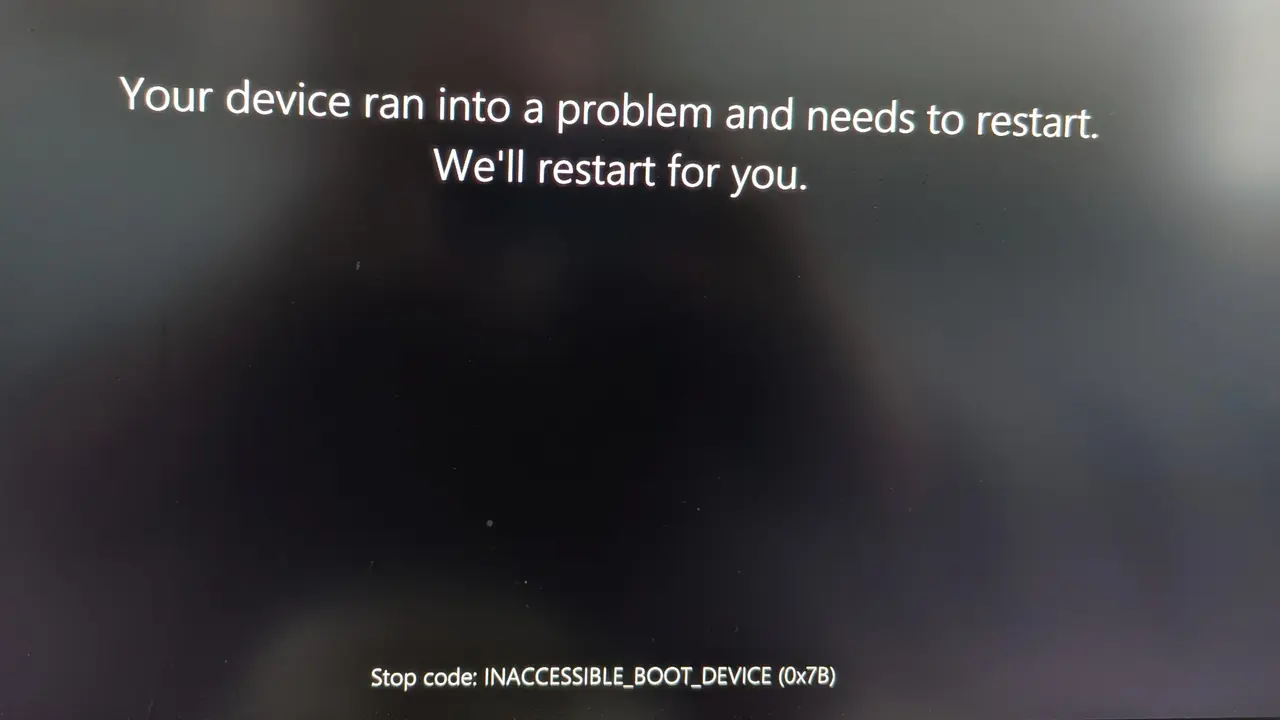
In my case, Windows 11 did a firmware update to the BIOS on my Acer TC-1760. For my dual boot machine, this resulted in me still being able to boot into Ubuntu 24.04, but not Windows 11. The error given was “INACCESSIBLE_BOOT_DEVICE (0x7B)”.
Reset The SATA Controller in The BIOS Back to AHCI
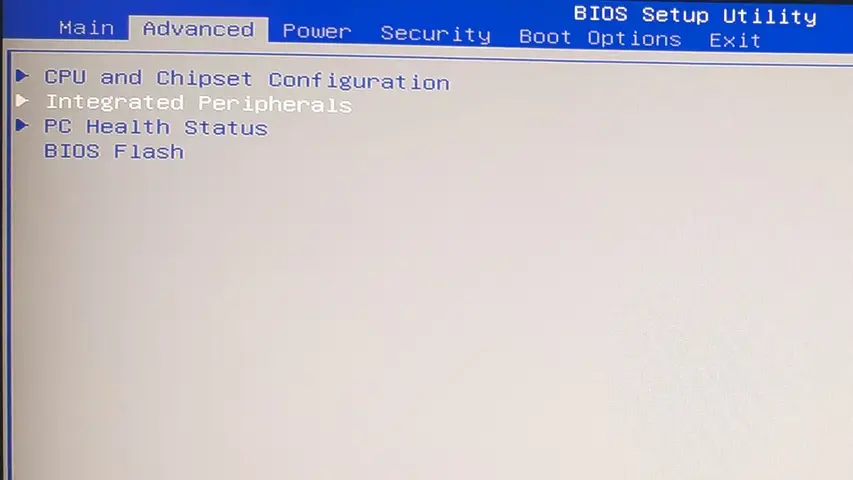
I read information somewhere that the BIOS gets reset to defaults after a firmware update, so any changes you made to the system BIOS need to be reset. In the case of a dual-boot Linux system, the most likely change you need to make is to reset the SATA Controller from VMD (or Intel RST) back to AHCI. Start up the computer and repeated press the BIOS key (DELETE for my Acer computer) until the BIOS appears.
If you do not see an Advanced BIOS tab with an “Onboard SATA Mode” choice, then press Ctrl-S at the Main BIOS tab to reveal the “Secret” BIOS settings. I don’t know if “S” stands for Secret, but it should be “Stupid” for hiding these choices…
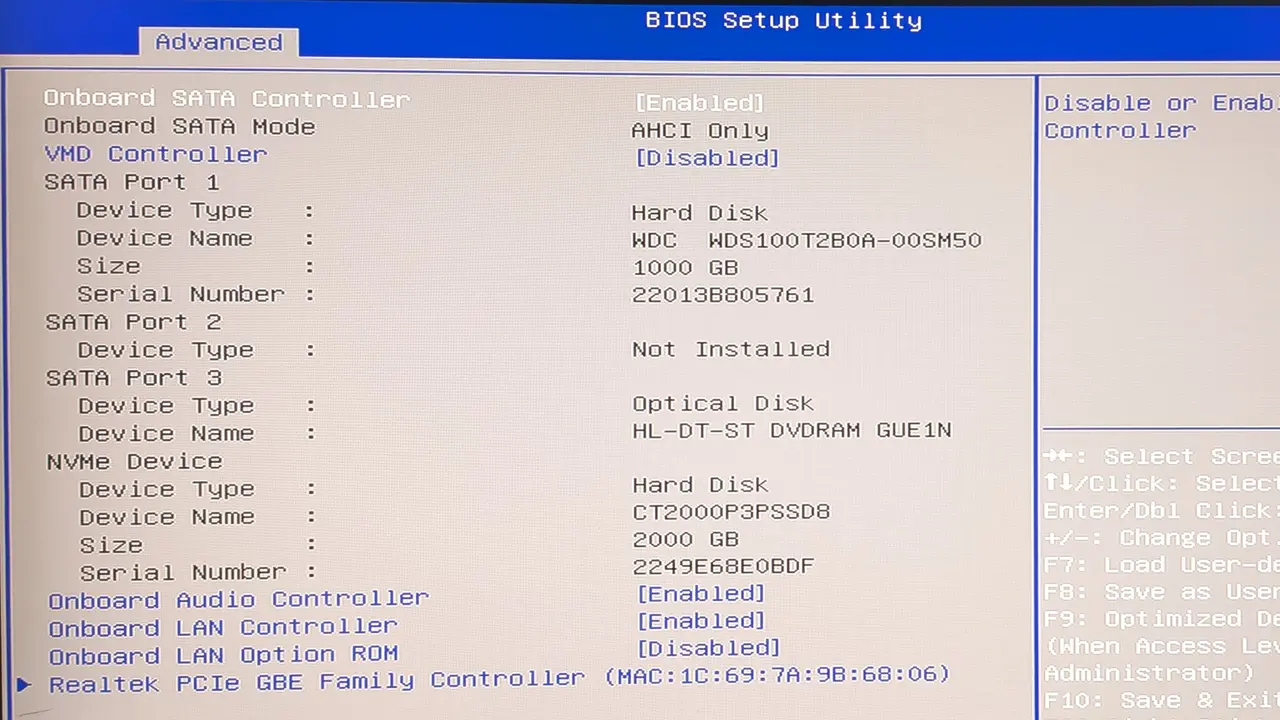
In my case, I only need to use the arrow keys to highlight “VMD Controller” and select it (Enter) and choose “Disable”. This automatically changed the “Onboard SATA Mode” to “AHCI Only”. Your BIOS may have different wording. You are looking for SATA Mode (set it to AHCI) or VMD Controller (disable it).
Use the Esc key to get back to the main BIOS screen and then use the tab key to find the “Save Changes and Exit” choice. This was all I had to do to repair the boot sequence. My notes on linux and computer are in the Computer category.